
Source: MachineLearningMastery.com
In this article, you will learn how the enhanced BigQuery ML UI streamlines end-to-end model creation, management, and prediction directly in the BigQuery console.
Topics we will cover include:
- Simplifying model creation with a guided, saveable SQL flow.
- Preparing a reproducible training/evaluation/prediction split in SQL.
- Running predictions with
ML.PREDICTand understanding the outputs.
Let’s not waste any more time.

Revolutionizing MLOps: Enhanced BigQuery ML UI for Seamless Model Creation and Management
Introduction
Exciting news for BigQuery ML (BQML) users. There are significant enhancements to the BigQuery ML UI, designed to streamline your machine learning workflows directly within the BigQuery console. These enhancements make it easier to create, manage, and understand BigQuery ML models without leaving the console.
Streamlined Model Creation Flow
The updated UI significantly improves the model creation process. You can now save SQL queries directly within the model creation flow (note: you must include a region when saving the query).
To illustrate this, let’s walk through how the enhanced BigQuery ML UI helps you quickly create a logistic regression model that predicts income brackets ($<=50K or $>50K) using U.S. Census demographic data.
You can explore the census dataset by running the following query:
|
SELECT age, workclass, marital_status, education_num, occupation, hours_per_week, income_bracket, functional_weight FROM `bigquery–public–data.ml_datasets.census_adult_income` LIMIT 100; |
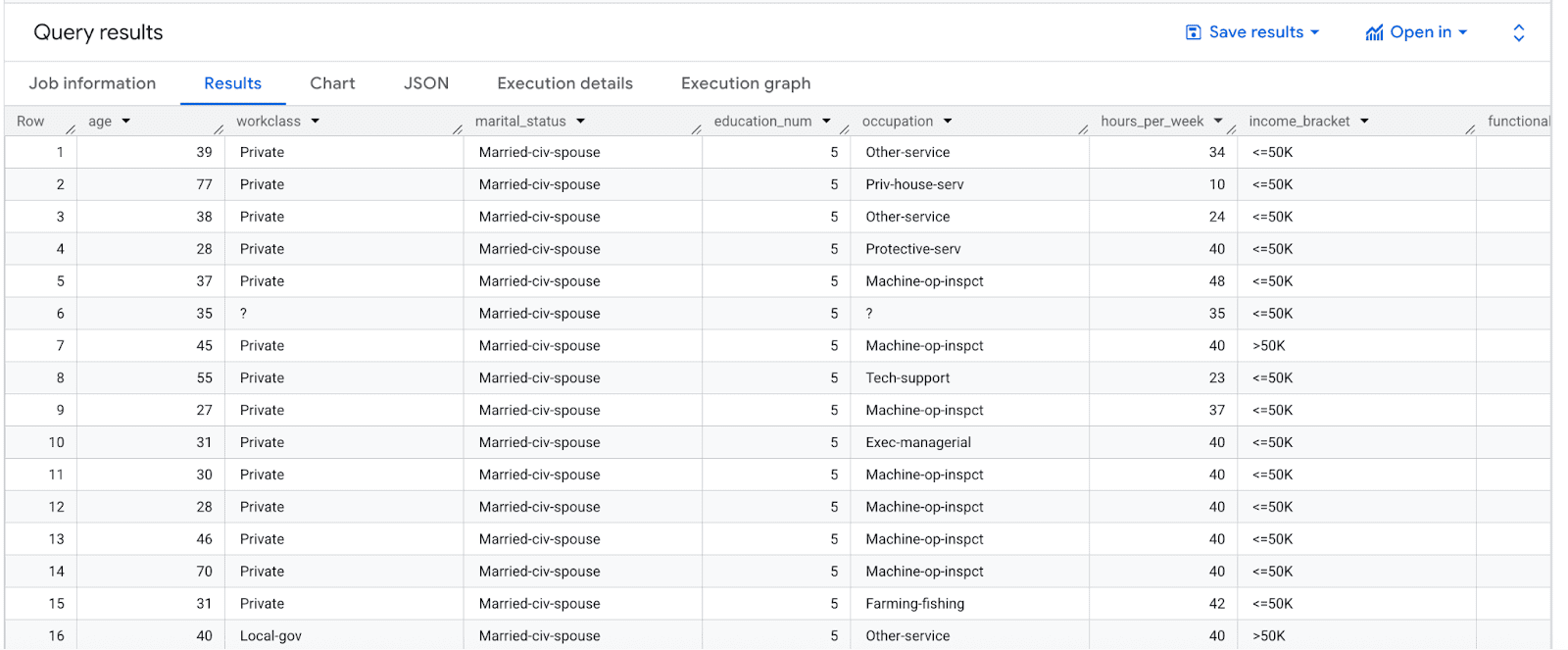
Image by Author
The query results show that the income_bracket column in the census_adult_income table contains one of two values: <=50K or >50K. The functional_weight column is the number of individuals that the census organization believes a particular row represents. The values of this column appear unrelated to the value of income_bracket for a particular row.
Let’s prepare a sample dataset for model training. We will separate the data into training, evaluation, and prediction sets by deriving a new column from functional_weight. Allocate 80% of the data for training, with the remaining 20% reserved for evaluation and prediction.
|
1 2 3 4 5 6 7 8 9 10 11 12 13 14 15 16 17 |
CREATE OR REPLACE VIEW `census.input_data` AS SELECT age, workclass, marital_status, education_num, occupation, hours_per_week, income_bracket, CASE WHEN MOD(functional_weight, 10) < 8 THEN ‘training’ WHEN MOD(functional_weight, 10) = 8 THEN ‘evaluation’ WHEN MOD(functional_weight, 10) = 9 THEN ‘prediction’ END AS dataframe FROM `bigquery–public–data.ml_datasets.census_adult_income |
Creating the ML Model in BigQuery UI
From the BigQuery Home screen, you can click on “ML Model” to begin the model creation process.
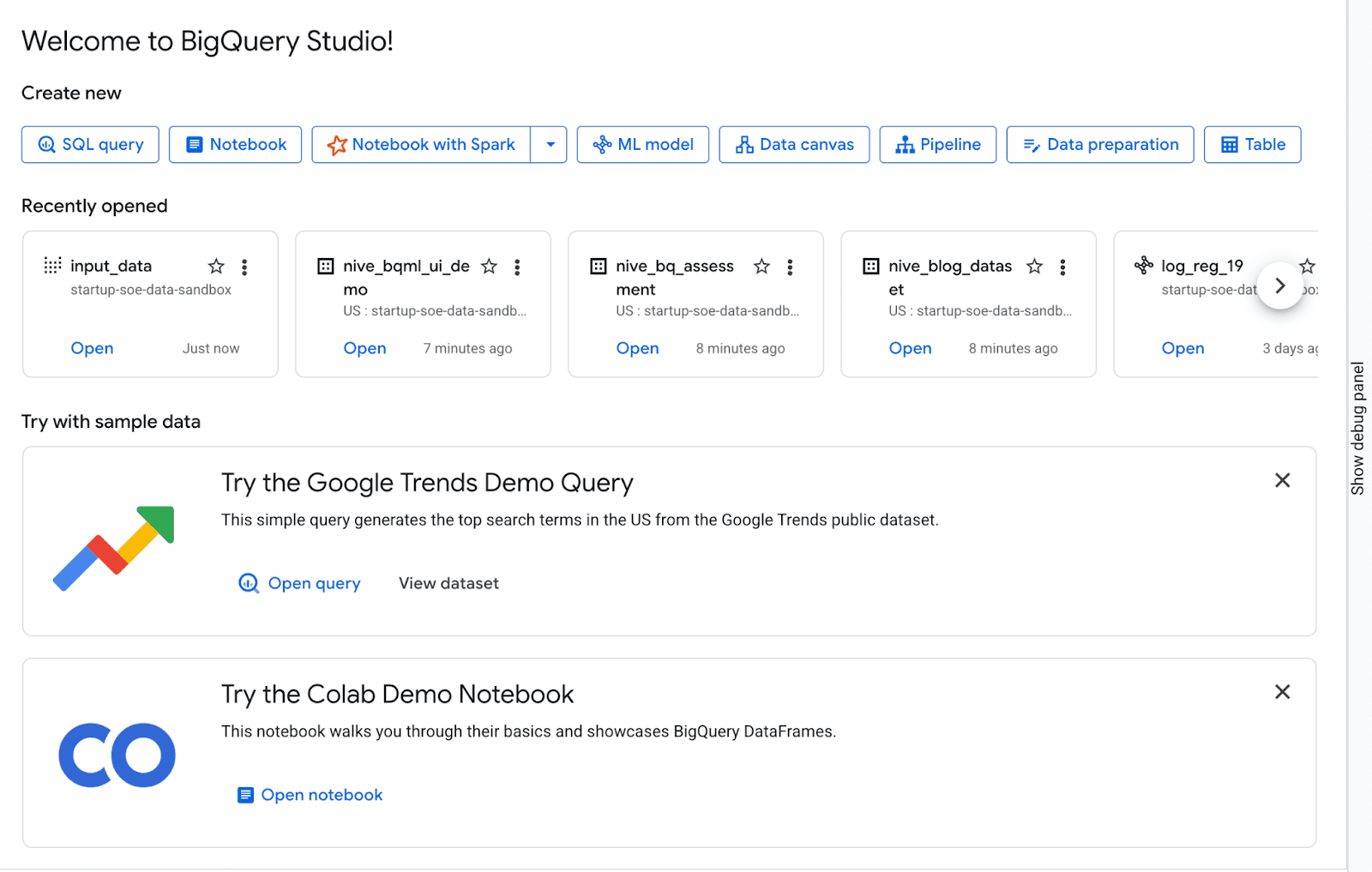
Image by Author
This opens the “Create new ML model” page where you select the dataset and provide a model name. For this example, select the census dataset and name the model logistic_reg.
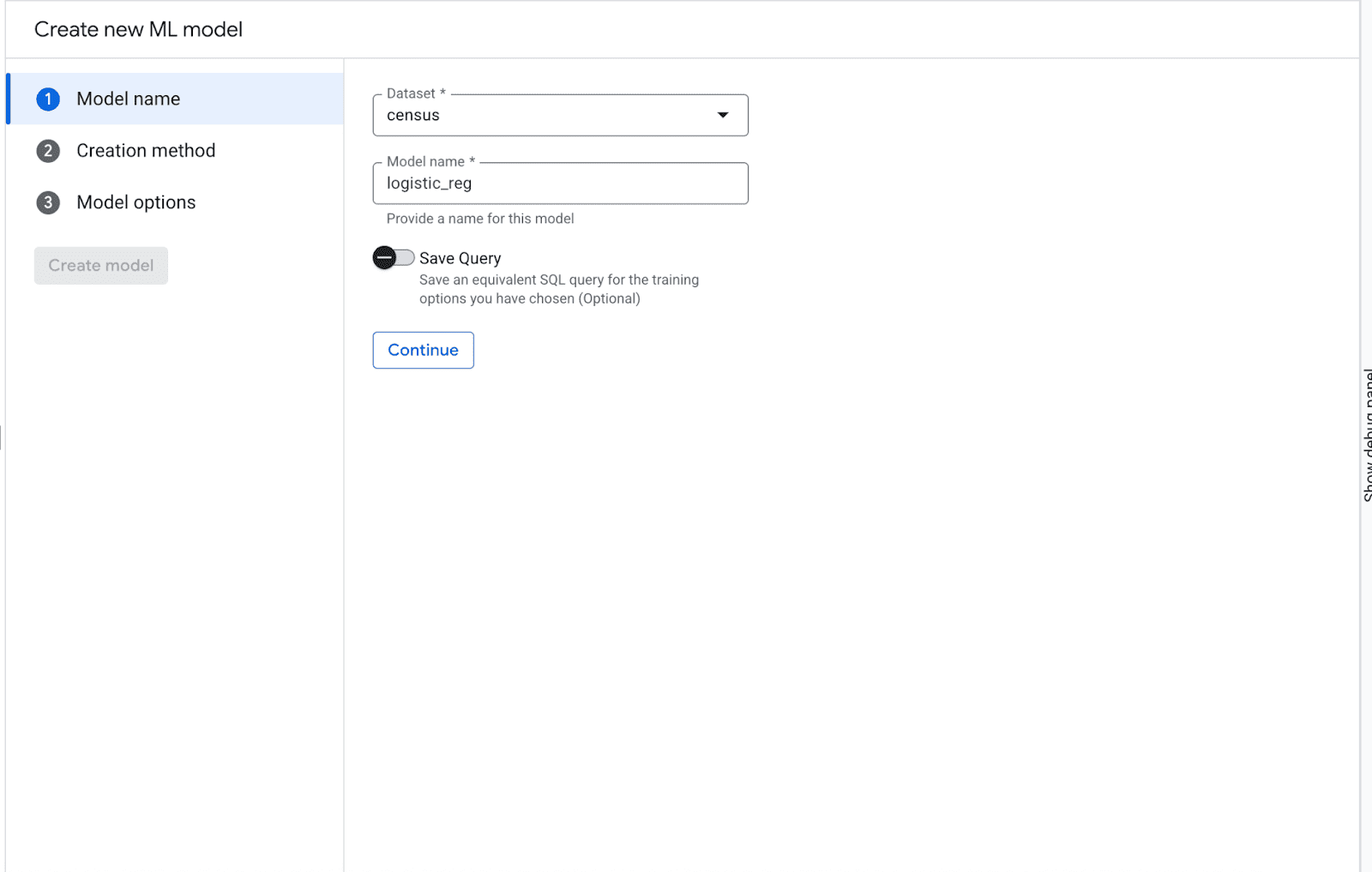
Image by Author
Next, on the “Creation method and Modeling Objective” page, choose “Train a model in BigQuery” and select “Classification” as the modeling objective. For “Model options,” choose “Logistic Regression” as the model type. Then set the training data by selecting census as the dataset and input_data as the Table/view.
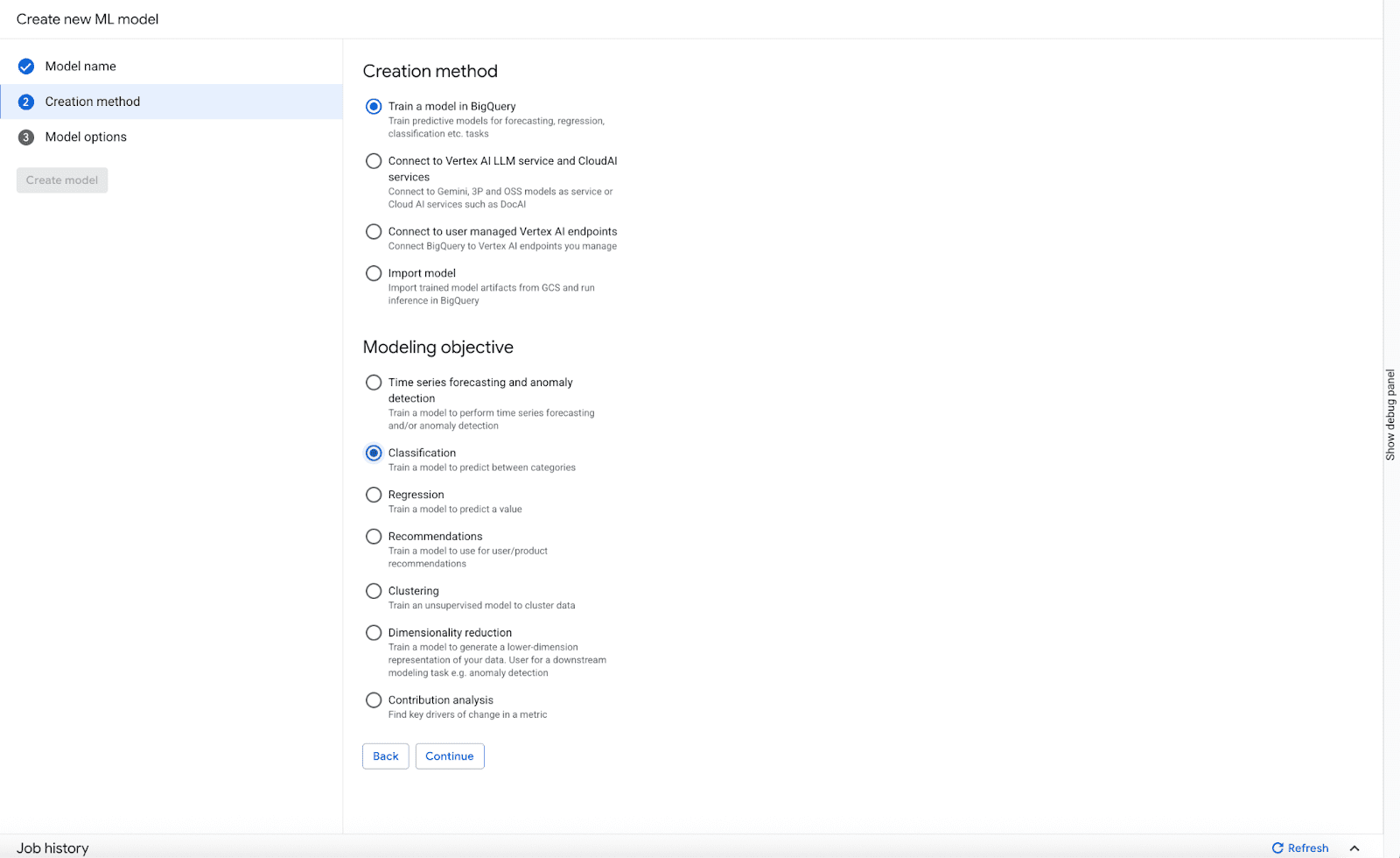
Image by Author
On moving forward, you can adjust model options and confirm the training data. For model options, select Logistic Regression, and for training data select census as the dataset and input_data as the table_view.
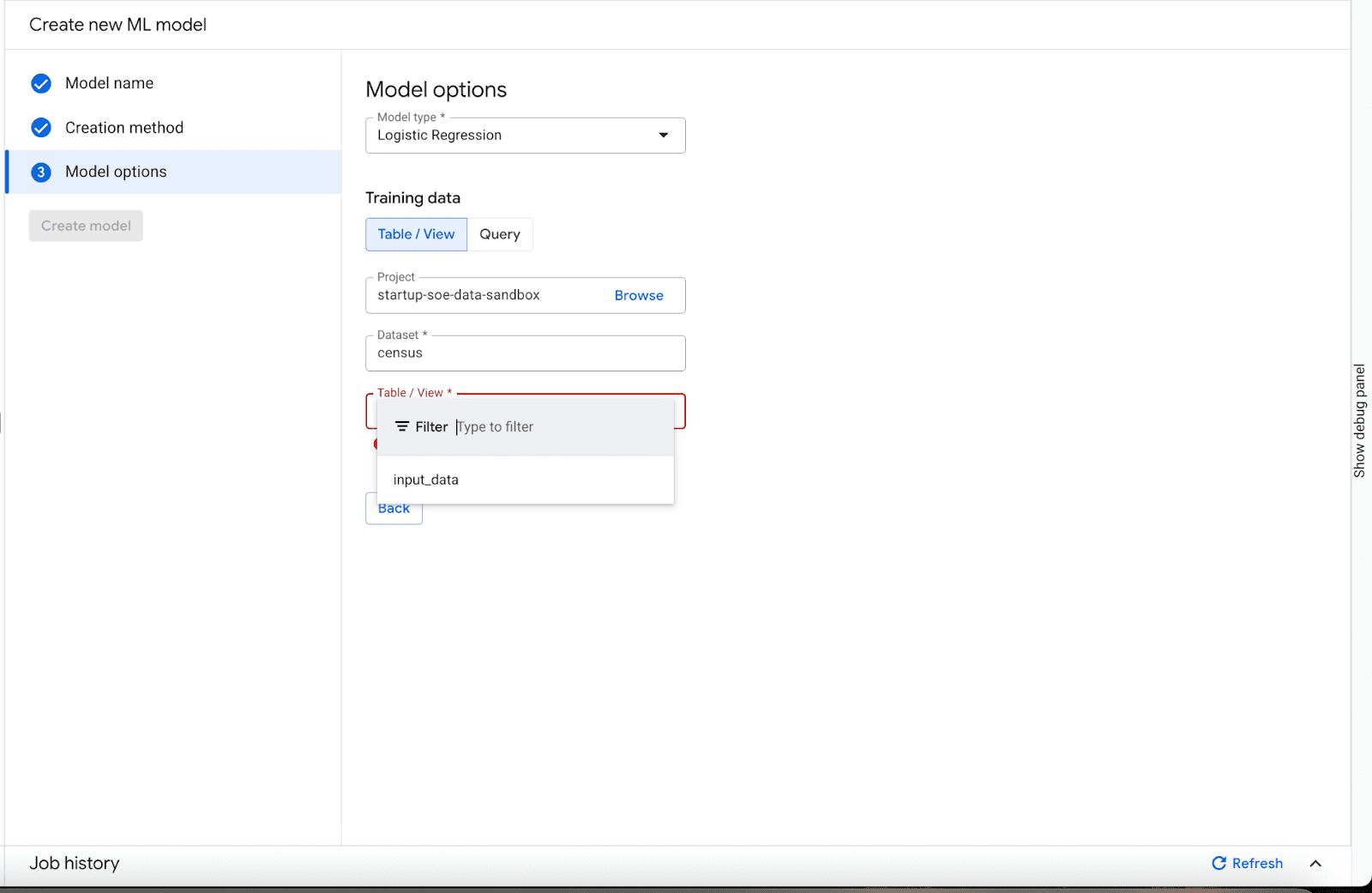
Image by Author
Finally, select income_bracket as input_label_cols and click “Create model.” After model creation, the “Query results” section appears with four tabs: Job information, Results, Execution details, and Execution graph. The Execution details and Execution graph tabs provide comprehensive information about the model creation job, including loss and learning rate details.
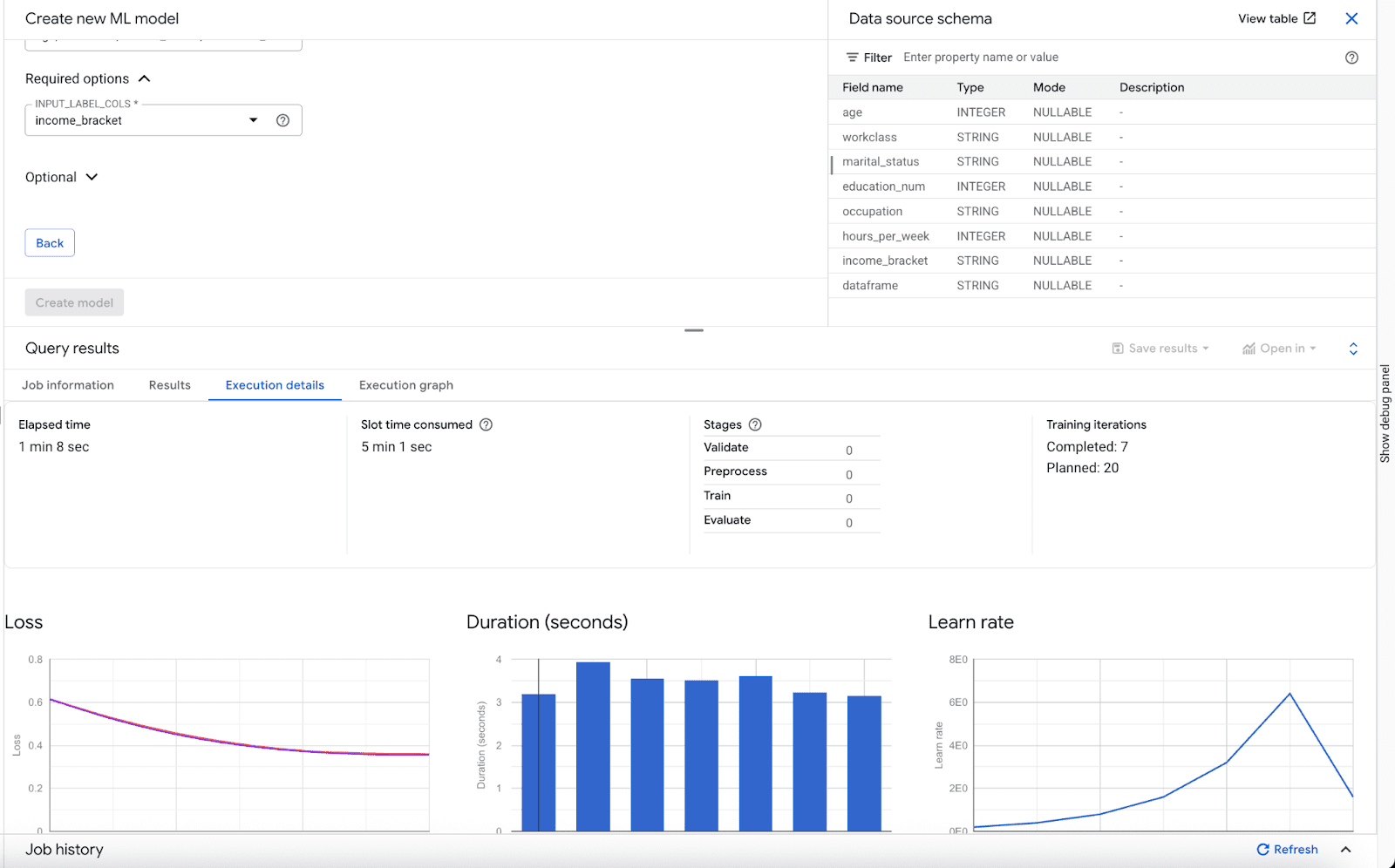
Image by Author
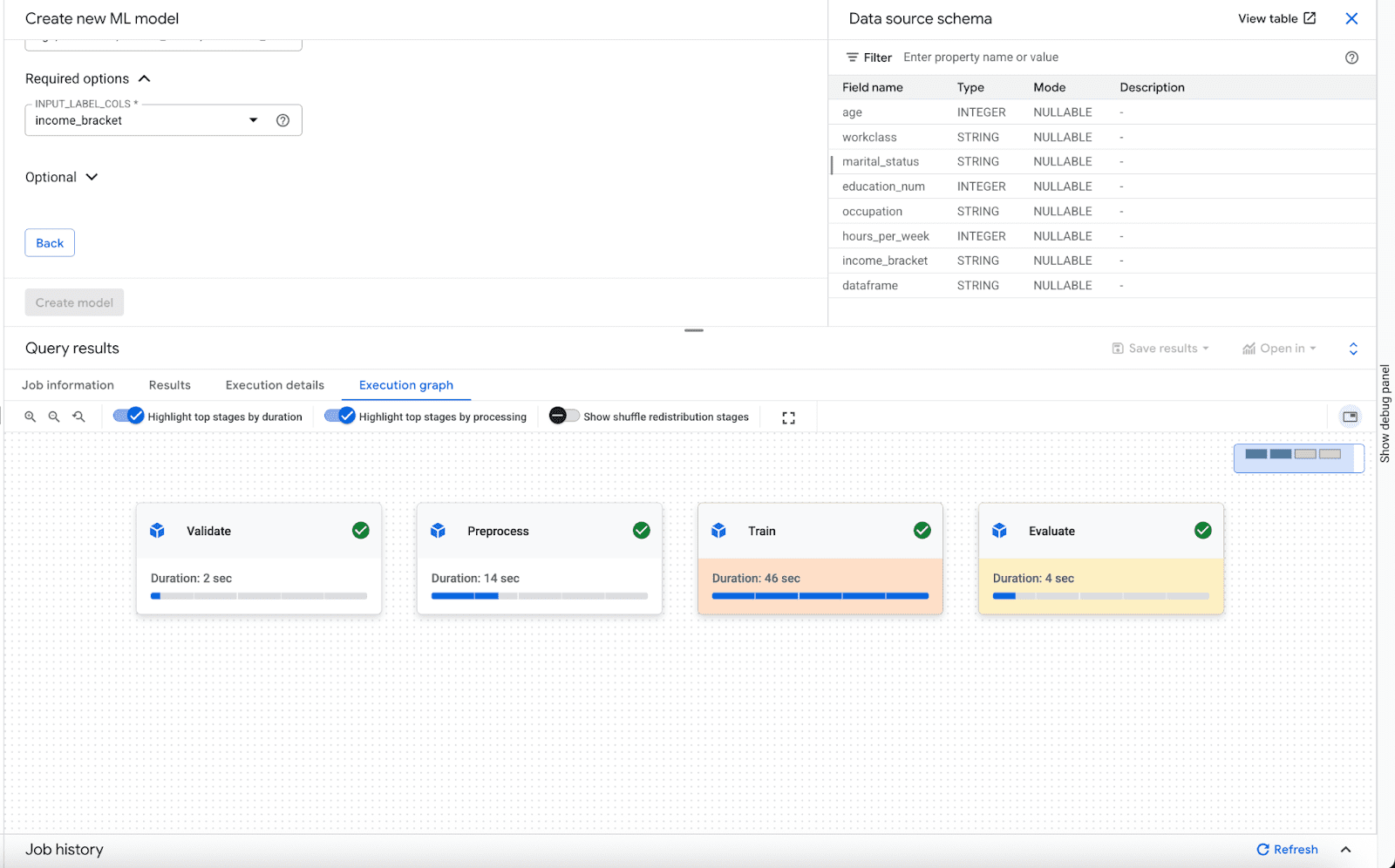
Image by Author
Using the Model for Prediction
Now use the created model for prediction in the BigQuery Studio query editor with the ML.PREDICT function. This function takes the trained model (census.logistic_reg in this example) and the rows from the input_data view where the dataframe column value is 'prediction'.
|
SELECT * FROM ML.PREDICT (MODEL `census.census_model`, ( SELECT * FROM `census.input_data` WHERE dataframe = ‘prediction’ ) ) |
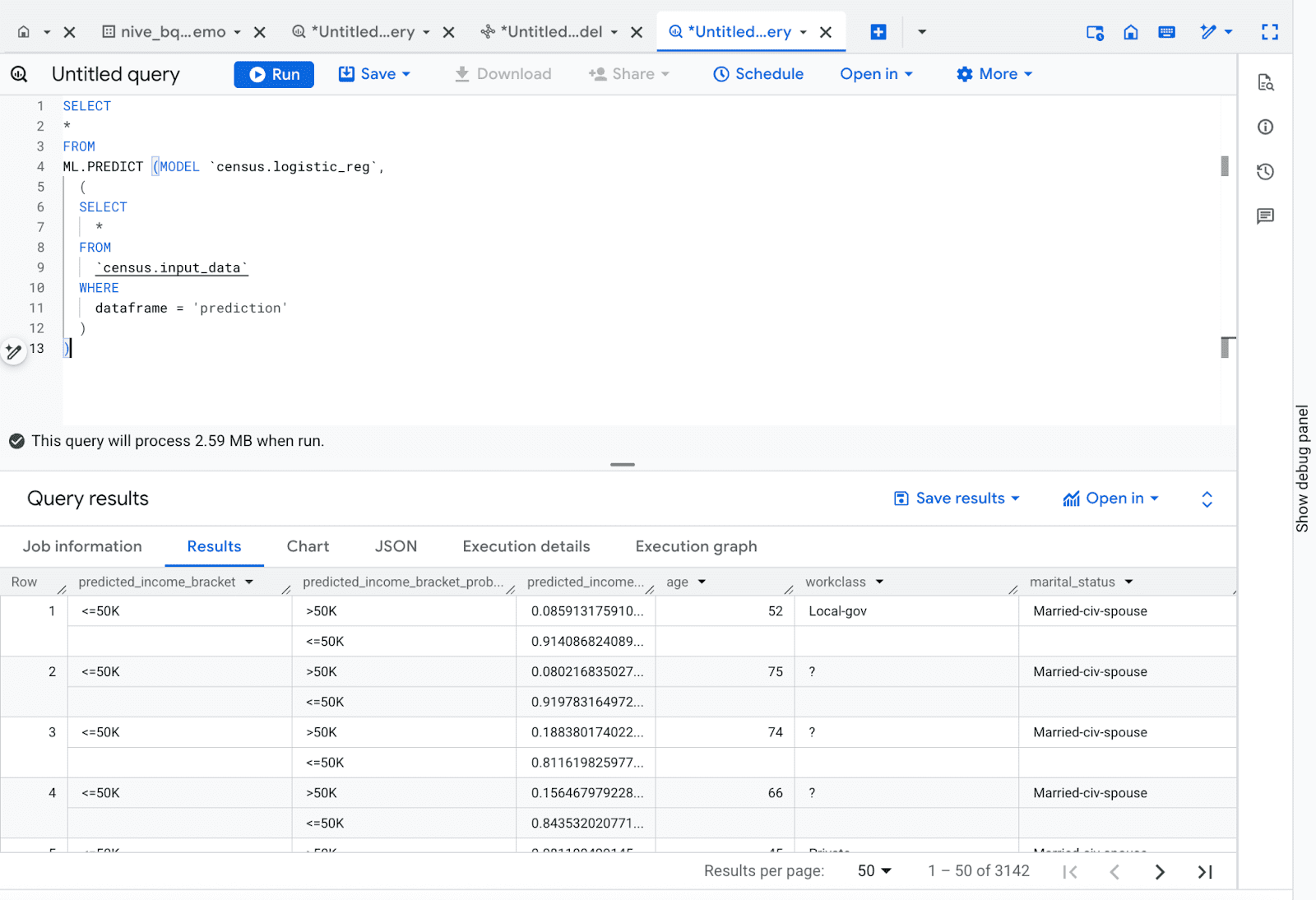
Image by Author
This query generates predictions for income_bracket, including the predicted bracket, prediction probability, and the original input data.
Wrapping Up
These UI enhancements provide a more intuitive and efficient experience for BigQuery ML users — from model creation to deployment and monitoring. Explore the new BigQuery ML UI and experience a streamlined MLOps workflow. To learn more about BigQuery ML and its capabilities, check out the BQML UI User Guide.
Get started today!