

Source: Unite.AI
I’ve spent way too much time doing tasks that feel like they should be someone else’s job, whether it’s formatting reports, organizing information, or repeating the same steps in different apps. At some point, you start thinking, “Maybe I should just hire a VA.”
That’s why Claude Cowork’s Record a Skill feature caught my attention. Instead of writing out a giant list of instructions for an AI, you can record yourself doing a task, explain what you’re doing as you go, and have Claude turn your process into a reusable skill.
I’ve tested hundreds AI tools over the past couple of years, so I’m pretty skeptical when a feature promises to “automate your workflow.” I wanted to see whether Record a Skill actually felt like having a virtual assistant, or whether it was just another AI feature that sounds better than it works.
So I recorded myself teaching Claude how to format a weekly status report. And honestly? It felt surprisingly close to training a VA.
In this Claude Cowork Record a Skill review, I’ll show you exactly how it works, what I liked, what I didn’t, and whether it can actually replace some of those repetitive tasks you’d normally hand off to someone else.
Verdict
Overall, Claude Cowork’s Record a Skill feature makes it much easier to turn your everyday workflows into reusable AI tasks by showing Claude how you work. While it requires some setup and works best for certain types of tasks, it’s a powerful option for anyone who wants to automate repetitive work without writing code.
Pros and Cons
- Build a Skill by showing Claude your workflow instead of manually writing instructions or setting up complex automations.
- By verbally explaining your process while recording, Claude understands the decisions behind your workflow rather than just steps.
- Captures visual workflows that are difficult to explain through text alone.
- Great for browser-based or desktop workflows like reporting, data entry, file organization, and multi-step admin tasks.
- If your process changes, you can record a new version instead of rebuilding an automation from scratch.
- Once created, Claude can reuse the Skill whenever you need that task completed again.
- You can preview the Skill before saving it, giving you a chance to review and adjust it.
- Only available on paid plans and currently restricted to Claude for Mac.
- Because Claude records your screen and voice, it could capture private information like emails or documents while you’re recording.
- If your workflow changes or something unexpected happens, you may need to update the Skill.
- Works best for documents, spreadsheets, and web-based tasks rather than workflows involving large media files.
- Recorded Skills are great for repeatable tasks, but dedicated tools or integrations may work better for more complex workflows.
- You need to grant permissions and adjust a few settings before recording your first Skill.
What is Claude Cowork?
Upon first glance, you might think “Claude Cowork” is just a fancier name for the regular Claude chat window.
While they share similar capabilities, the biggest difference is that Claude Cowork can actually interact with files and folders on your computer. This allows it to complete multi-step tasks instead of just answering questions.
To sum it up: Claude Chat gives you answers, while Claude Cowork helps you get things done.
Definition
Claude Cowork is an agentic tool from Anthropic that works across your files, folders, and connected apps to complete multi-step tasks independently.
That means you’re not typing one question and getting one answer back. You’re handing it a job (like “clean up this messy downloads folder” or “build me a weekly report from these spreadsheets”) and it goes and actually does the work, checking in with you when it hits a decision point.
Cowork vs. Chat
Hence why it’s called “Cowork.” It feels less like chatting with an AI assistant and more like collaborating with a digital coworker who can take on tasks alongside you.
That’s the part that tripped me up at first. In a normal Claude conversation, you’re basically doing all the driving. You ask, it answers, you ask again. It’s collaborative, but it’s turn by turn.
Cowork flips that. You describe the outcome you want, and it plans the steps, works through them, and comes back when it’s done or when it needs your input on something ambiguous.
It’s less like chatting with an assistant and more like handing off a task to a coworker and checking back later. Which, I’ll admit, felt weird to trust initially!
Key Capability: Works Unattended Across Devices
The capability that sold me was how it works unattended in the background. Cowork can keep working even when you’re not sitting there watching it (almost like an employee), and it can pick up across web, desktop, and mobile.
For example, you might kick off a task from your laptop in the morning, get a status update on your phone at lunch, and come back to a finished output that evening.
That shift from constantly prompting an AI to assigning it a task and letting it work in the background is a very different experience from the copy-paste chat loop most of us are used to.
Real-World Example Use Cases
Here are a few practical Claude Cowork use cases:
- Weekly marketing reports: Pointing Cowork at a folder of campaign data or connected apps and having it compile the numbers into a written report on a schedule, instead of someone manually pulling this together every week.
- Spreadsheet building: Feeding it raw data or notes and having it structure, calculate, and format an actual usable sheet.
- Bulk document review: Scanning through a stack of contracts, receipts, or notes and pulling out what matters.
Record a Skill
You can even create custom Skills by showing Claude how you complete a task, allowing it to learn your process and turn it into a reusable workflow.
Simply record yourself completing the task, including your screen activity, clicks, and verbal explanation, and Claude will generate a draft Skill based on your workflow. You can then review, refine, and save it for future use.
Permission Requirements
One important thing worth knowing before diving in: it needs permission before it touches your files.
That permission step might sound annoying, but it’s an important safety layer that gives you control over what Claude can access. Instead of letting an AI freely browse your computer, you decide which folders, files, or actions it can use.
Also, Cowork is only available on the paid plans, and the Record a Skill feature only works on Mac. So if you’re using Claude for free or are on a Windows computer, you’re unfortunately out of luck.
Who is Claude Cowork Record a Skill Best For?
Record a Skill is best for professionals, creators, and teams who repeat the same computer tasks and want to turn them into reusable workflows without coding.
- Content creators and solo operators can publish content, organize ideas, manage clients, track performance.
- Administrative professionals can schedule, organize their inbox, and prepare documents and meeting notes.
- Marketers and growth teams can create campaign reports, manage content workflows, track analytics, and research audiences.
- Researchers and analysts can gather information, organize findings, summarize sources, and analyze data.
- Designers and creative teams can apply brand guidelines, prepare assets, and organize files.
- Sales teams can research leads, update CRMs, prepare proposals, and manage follow-ups.
- Customer success teams can streamline onboarding, create client updates, and manage support workflows.
- Operations and project teams can create recurring reports, clean up data, track processes, and manage workflows.
- Teams documenting internal processes can capture expert workflows, share knowledge, and create consistent processes.
- Anyone can turn repetitive computer tasks they do regularly (like organizing emails, sorting files, formatting documents) into reusable workflows without starting from scratch every time.
Claude Cowork Record a Skill Key Features
Here are Claude Cowork’s Record a Skill key features:
- Interactive Visual & Voice Demonstration: Captures your screen activity, mouse movements, typing, and voice explanations to understand both what you do and the reasoning behind your decisions.
- Automated Skill Creation & Suggestions: Turns your recorded workflow into a reusable Skill and can suggest whether to create a new skill or update an existing one.
- Skill Preview & Approval: Creates a draft Skill for you to review before saving, allowing you to check and adjust the instructions before using it.
- Privacy-Focused Recording Process: Processes your recording, removes the raw audio and video files, and keeps only the essential screenshots needed for context.
- Flexible Workflow Customization: Lets you customize and tweak your recorded skills so they work the way you want and can be reused for similar tasks.
- App Connections (Connectors): Allows Claude to connect with tools like Google Drive and Apple Notes so it can use information from those apps when completing tasks and automate more of your workflow without you having to constantly copy and paste information.
How to Use Claude Cowork Record a Skill
Here’s how I used Record a Skill in Claude Cowork to teach Claude my process for formatting weekly status reports:
- Download Claude Cowork
- Access Cowork
- Update to the Latest Version
- Go to Record a Skill
- Grant Claude Permission
- Choose Microphone Settings & Start Recording
- Perform the Workflow
- Finish Recording & Add Connectors
- Save the Skill
Step 1: Download Claude Cowork
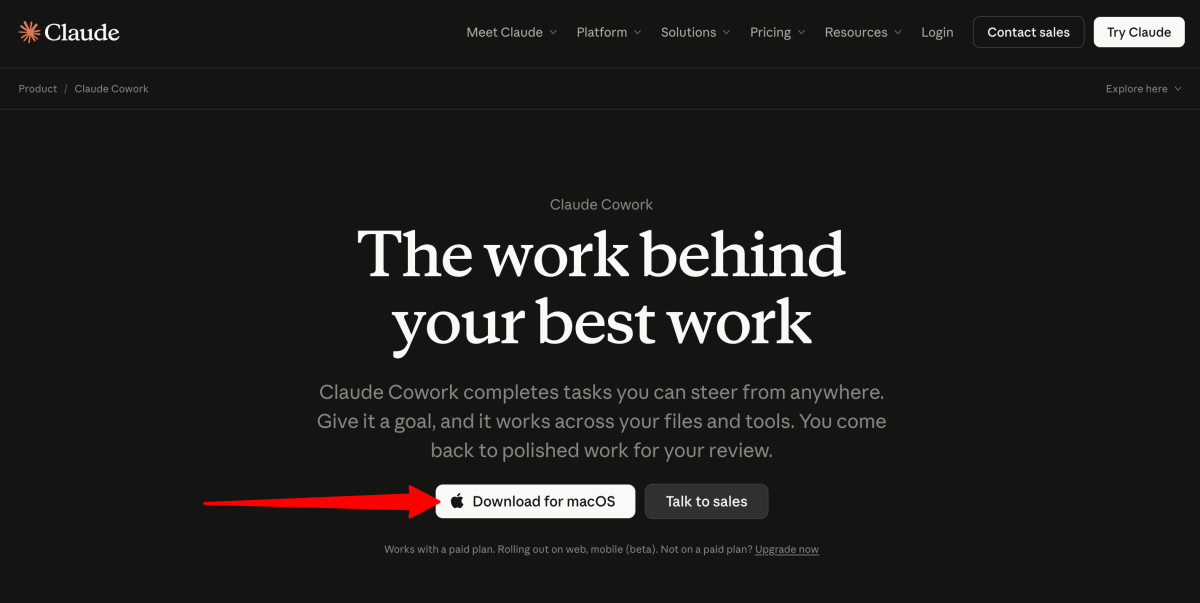
Start by going to claude.com/product/cowork and download Claude Cowork to your device.
You’ll need to use the Claude desktop app on a Mac with a Pro, Max, or Team plan. It’s not currently available on Windows, the Free or Enterprise plans, or regular Claude chat.
Step 2: Access Cowork
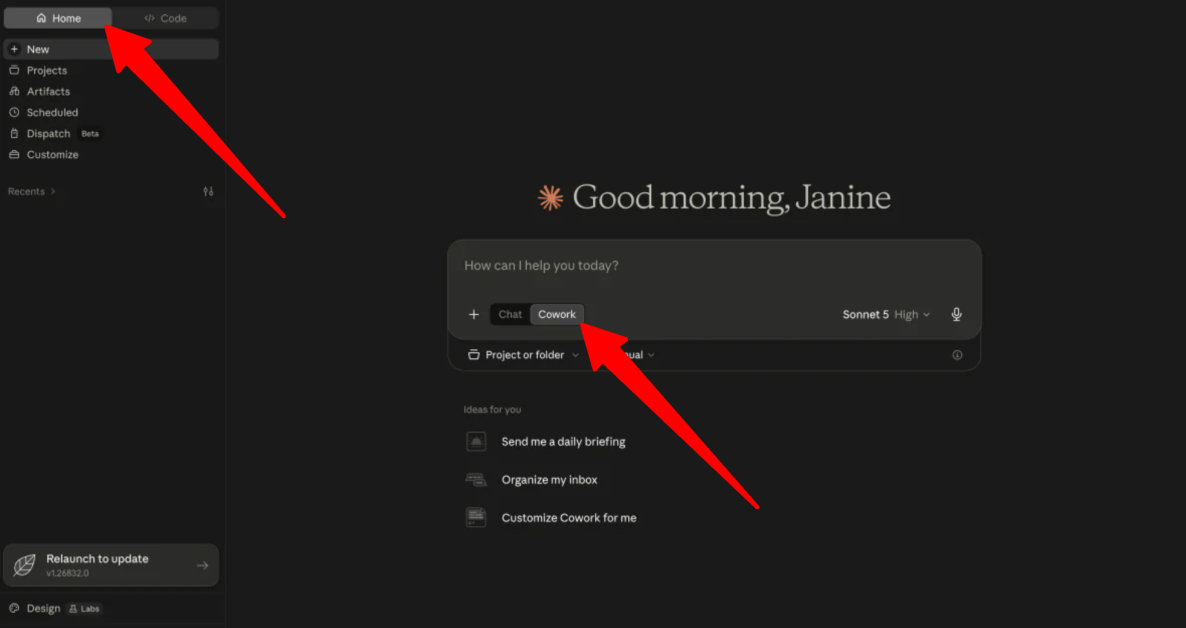
Once Cowork is downloaded, make sure you are on the “Home” tab (this is where “Chat” and “Cowork” live) and select “Cowork.”
Step 3: Update to the Latest Version
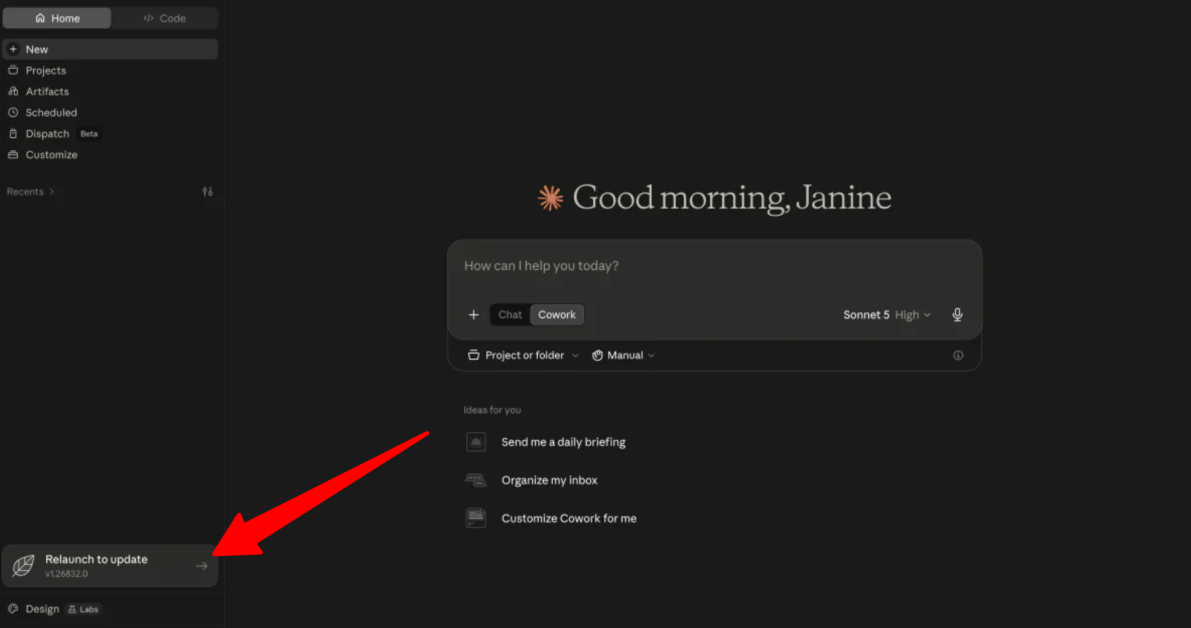
Before launching the recorder, make sure Claude is updated to the latest version.
Thankfully, updating is easy. If you see “Relaunch to update” in your Claude window, click it. Claude will update automatically and restart, and you’ll be ready to go.
Step 4: Go to Record a Skill
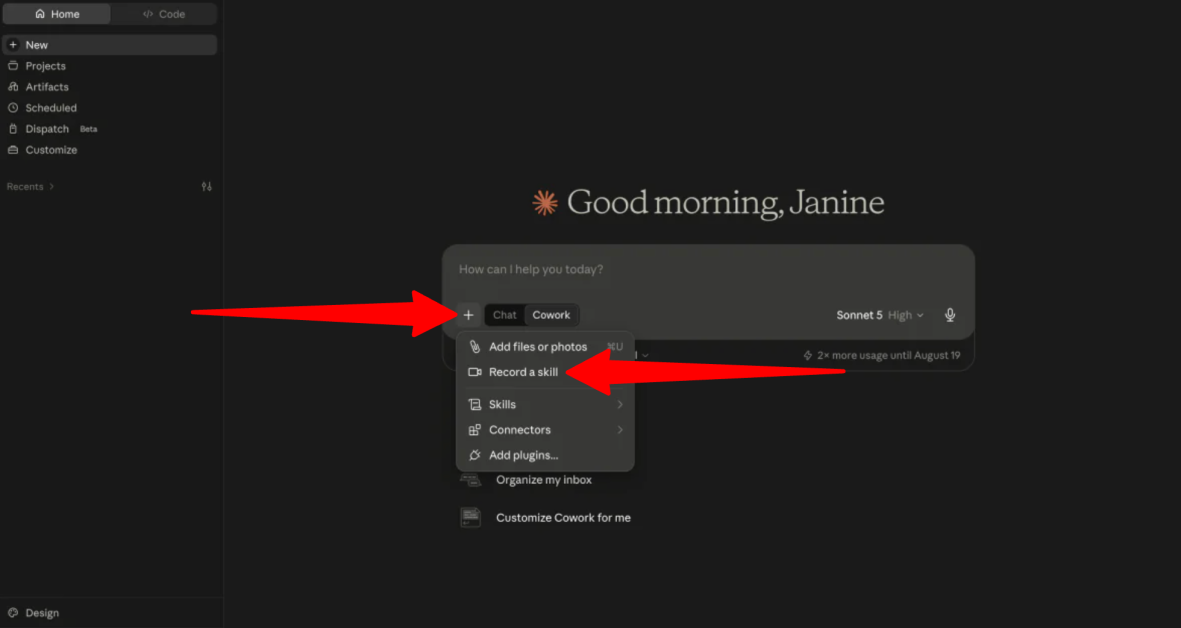
Next, click the “+” (Plus) button on the bottom left of the prompt composer bar, and select “Record a skill.”
Step 5: Grant Claude Permission
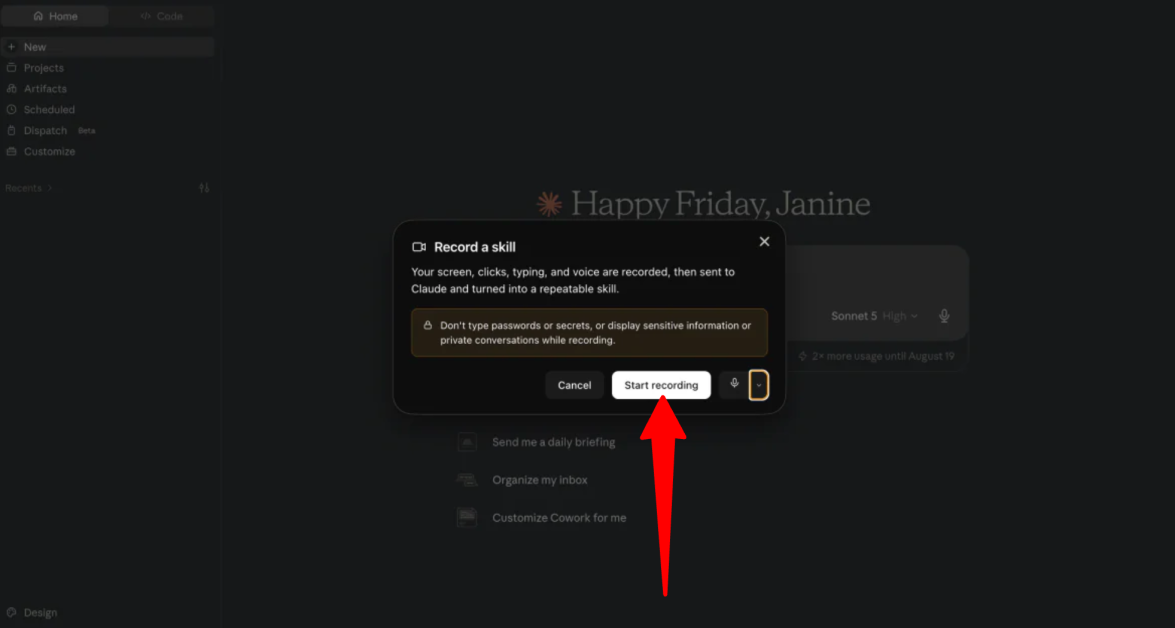
Click “Start recording.”
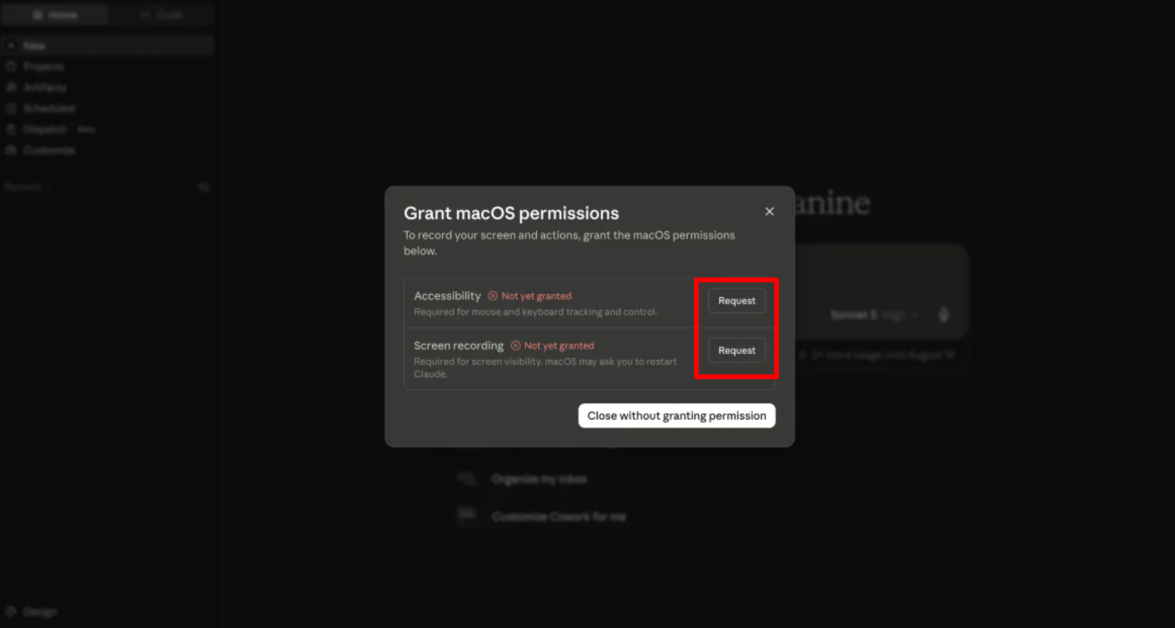
The first time you launch the recorder, macOS will ask for two permissions:
- Accessibility: Allows tracking of mouse clicks and keyboard actions.
- Screen Recording: Gives Claude screen visibility of your application windows (you may need to restart Claude after granting these permissions).
Before granting these permissions, make sure you close private messaging apps, personal files, and browser tabs with private information.
Do not type passwords, API keys, or personal secrets while recording. Everything on your screen and audio feed is captured during the session!
Step 6: Choose Microphone Settings & Start Recording
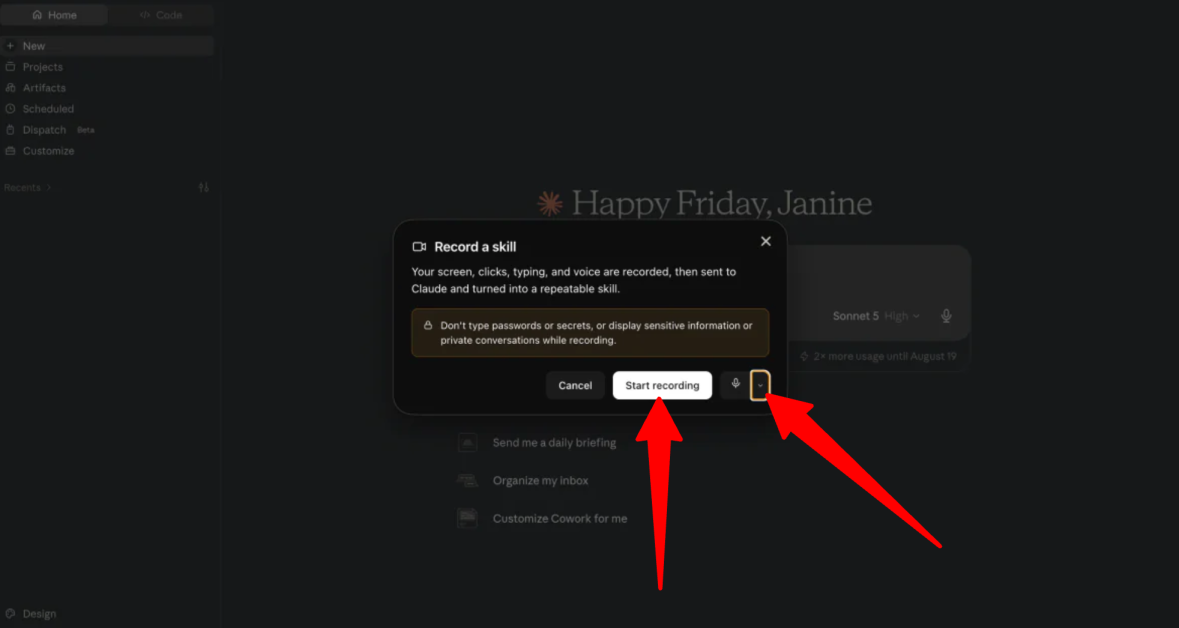
In the recording preview bar, click the microphone dropdown to select your preferred input mic (or click mute if you prefer to type narration).
Once you’ve granted Claude permissions and have chosen your microphone settings, hit “Start a recording.”
Step 7: Perform the Workflow
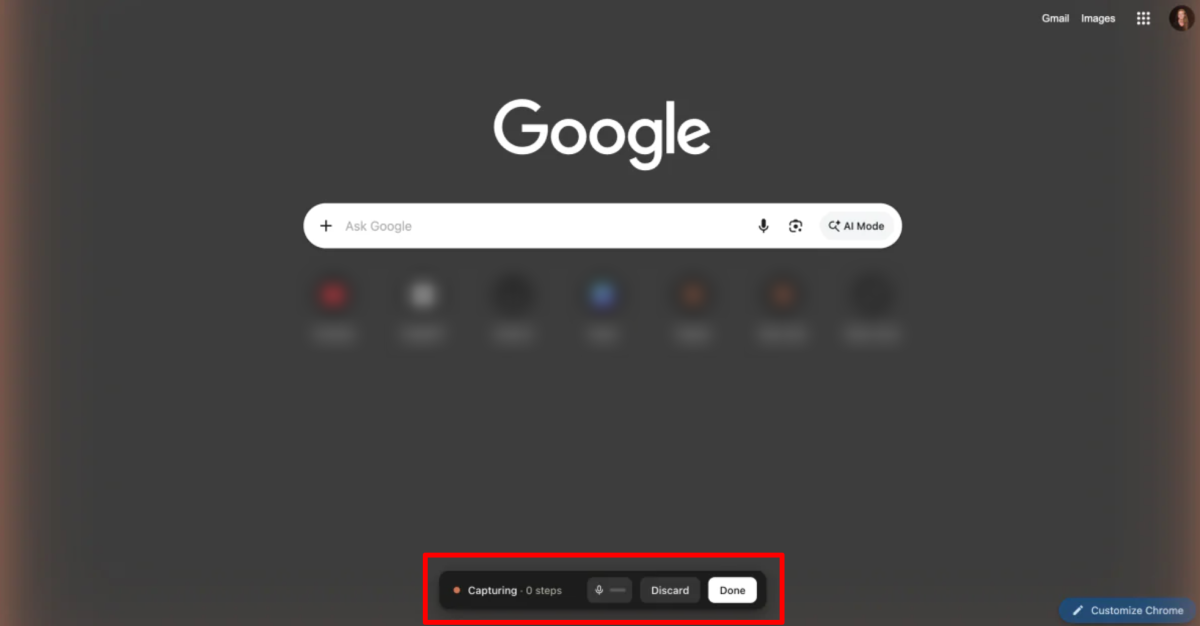
A floating Capture Bar will appear showing a live timer and active step counter.
- Perform your workflow on-screen at normal speed while narrating your choices into the mic.
- Sessions can run for up to 10 minutes (a 1-minute countdown will warn you before auto-stopping).
- When complete, click the red Done button on the floating Capture Bar. (If you make a mistake, click Discard to cancel without saving).
Step 8: Finish Recording & Add Connectors
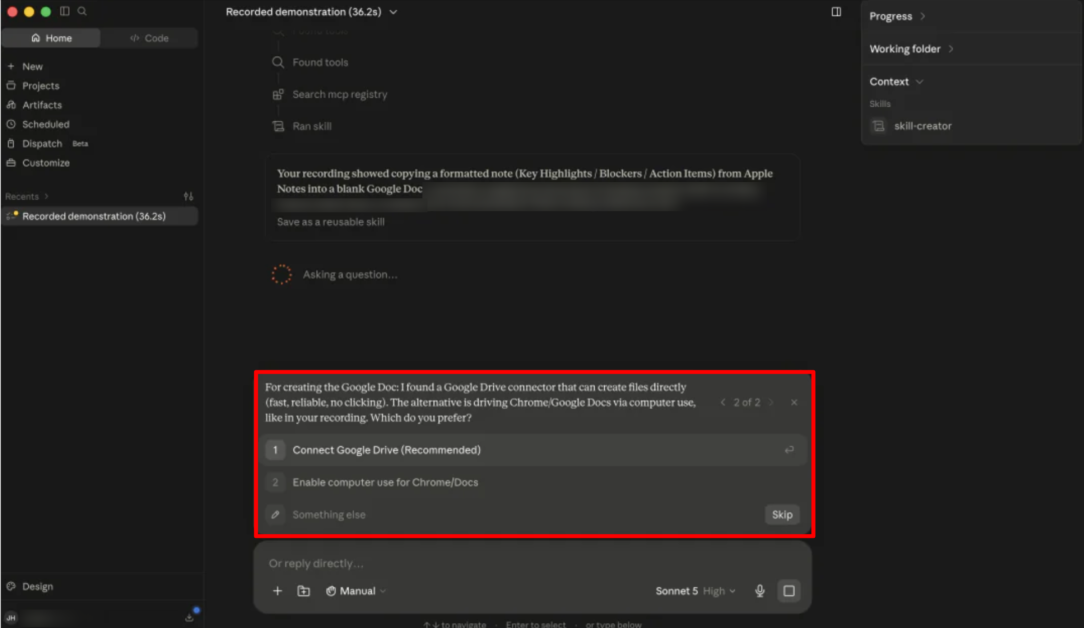
Once you click Done, Claude processes the recording, discards the raw audio and video files, and saves the key screenshots it needs for context.
It may also ask a few clarifying questions and offer to add connectors for any tools you used, such as Apple Notes or Google Drive. For a more automated workflow, you can connect these tools, choose to handle the task manually, or skip the request altogether.
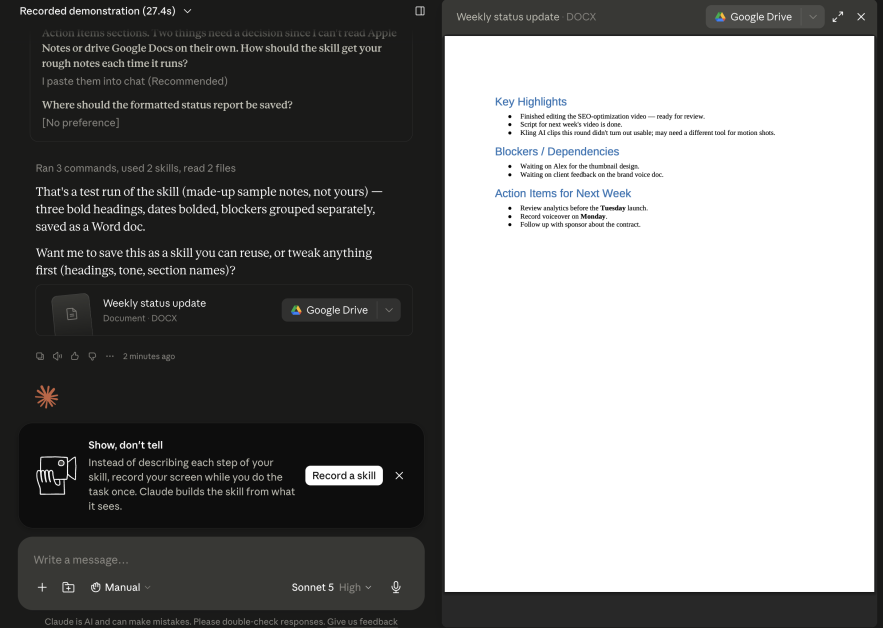
Claude may even provide a sample preview of the skill before you choose to save the skill or not.
Step 9: Save the Skill
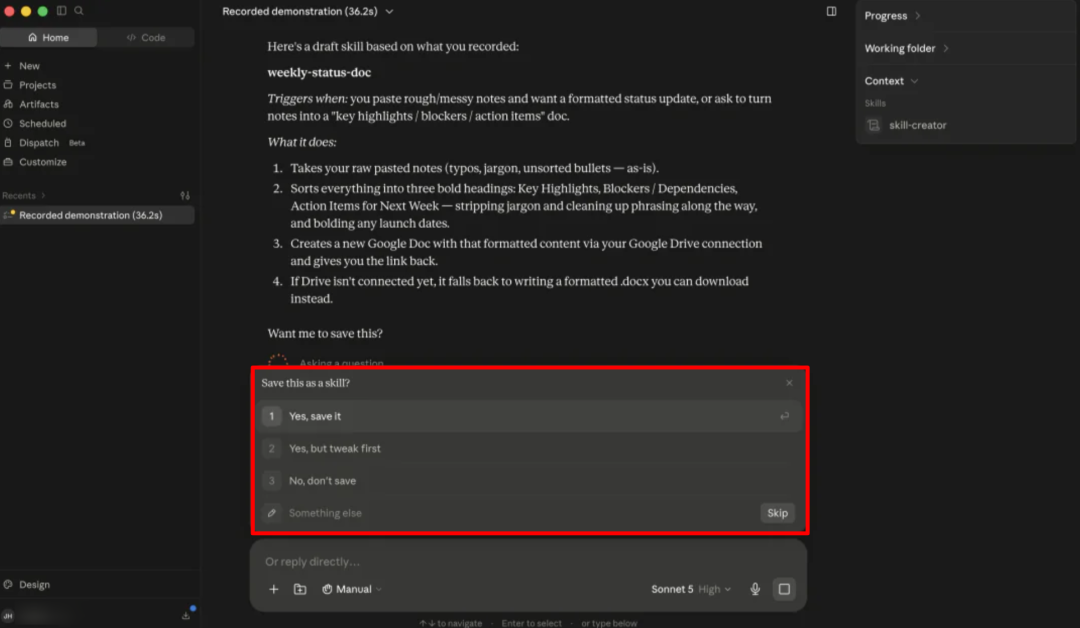
Save the skill to store it in Customize > Skills.
Overall, recording a skill in Claude Cowork felt surprisingly close to training a virtual assistant by simply showing it how I work. The setup takes a few steps, but once recorded, having Claude turn a repeatable process into a reusable workflow feels like a major shift from constantly explaining the same tasks through prompts.
Top 3 Claude Cowork Record a Skill Alternatives
Here are the best Claude Cowork Record a Skill alternatives I’d recommend.
Codex Record & Play (OpenAI)
The first Claude Cowork “Record a Skill” alternative I’d recommend is OpenAI’s Codex Record & Replay.
It’s OpenAI’s version of showing an AI how to do a task so it can turn that workflow into a reusable skill. Codex lets you demonstrate a workflow on your Mac and turn it into a structured asset, making it a strong alternative if you want to teach an AI a process by showing it rather than writing detailed instructions.
Both tools let you record a desktop workflow and turn it into a reusable skill, but they differ in execution.
On the one hand, Claude Cowork keeps things simple: you record your screen and voice, review the skill it creates, and save it. Meanwhile, Codex Record & Replay turns your recorded actions into editable files that can work with computer controls, browser actions, and connected plugins.
For a simple way to teach Claude your workflow through quick screen recording and narration, choose Claude Cowork Record a Skill. For more control and deeper desktop automation, choose Codex Record & Replay.
Gumloop
The next Claude Cowork Record a Skill alternative I’d recommend is Gumloop. It’s a more advanced AI automation platform that lets you build agents and workflows across different apps without needing to code.
Both platforms can automate repetitive tasks and let you describe what you want AI. They can both connect to different tools and handle more complex tasks than just answering questions.
However, they take very different approaches. Claude Cowork’s Record a Skill learns your workflow by watching you perform it, making it especially easy to turn your process into a reusable skill. Gumloop is better for more complex automations that can run on their own, connect multiple apps, handle several steps, and be managed across a team.
If you want to teach Claude a repeatable workflow by simply showing it what to do, choose Claude Cowork Record a Skill. If you need more advanced automations that connect multiple apps and can run on their own, Gumloop is the better choice.
OpenWork
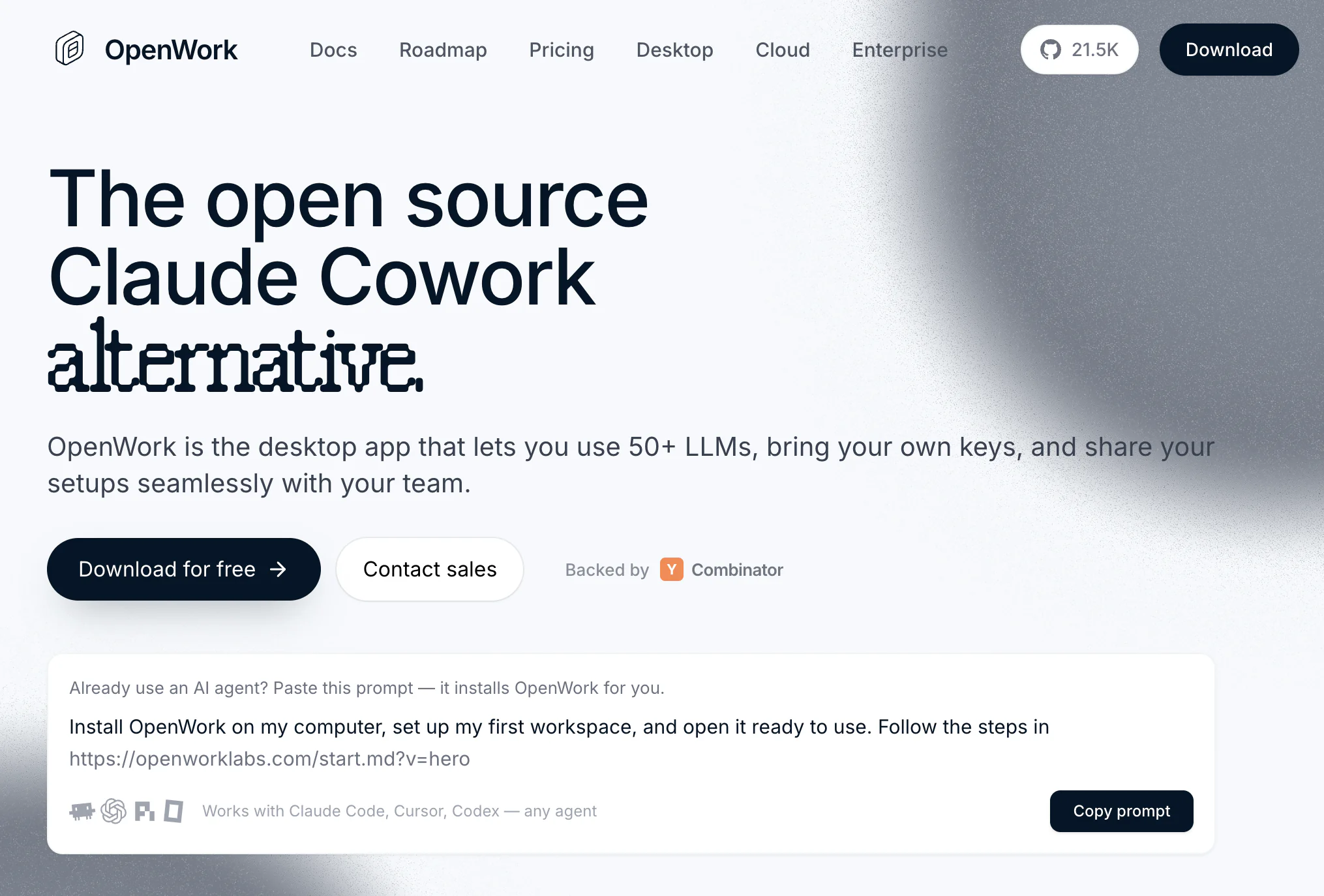
The final Claude Cowork Record a Skill alternative I’d recommend is OpenWork. It’s a free, open-source desktop app that lets you use AI agents from more than 50 providers, connect your own API keys, and run tasks across your files and apps.
Both tools can turn repeatable workflows into reusable skills, making them useful for automating everyday computer tasks. However, they take different approaches.
On the on hand, Claude Cowork’s Record a Skill lets you show Claude how you work by recording your screen, mouse movements, typing, and voice. OpenWork is more focused on giving you a flexible AI workspace where you can use different models, connect tools through MCPs, and share skills and setups with your team.
OpenWork also has a major advantage if you don’t want to be locked into one AI provider. It supports models from Anthropic, OpenAI, Google, and more, while Claude Cowork is built around Claude. OpenWork also works on Mac, Windows, and Linux, while Record a Skill is currently limited to Claude for Mac.
For the easiest way to create a Skill by simply showing Claude your workflow, choose Claude Cowork Record a Skill. For a free, open-source option that works with multiple AI models and operating systems, choose OpenWork.
Claude Cowork Record a Skill: The Right Tool For You?
After using Claude Cowork’s Record a Skill to teach it how I format weekly status reports, I was surprised by how simple the process was. Instead of spending time writing out every rule and instruction, I could just show Claude what I do, explain my decisions as I worked, and let it turn that process into a reusable skill.
For me, that’s the biggest appeal. I already spend a lot of time testing AI tools and building workflows, so being able to teach Claude a process by showing it feels much more natural than starting with a giant prompt. The setup is a little tedious, and I’d be careful about what’s visible on your screen while recording. But if you have repetitive computer tasks, I’d say it’s worth trying.
And if Record a Skill isn’t quite what you need, here are three alternatives that give you more control, more advanced automation, or more flexibility:
- Codex Record & Replay is best for people who want more control over recorded workflows and deeper desktop automation.
- Gumloop is best for building more advanced automations that connect multiple apps and run with less hands-on work.
- OpenWork is best for anyone who wants a free, open-source option that works with multiple AI models and operating systems.
Thanks for reading my review on Claude Cowork’s Record a Skill! I hope you found it helpful. If you’re using a Mac computer, sign up for Claude and upgrade to one of the paid plans to try it for yourself.